
Stage gate approvers are requested to give approval for stage gates when an initiative has been submitted for approval.
There are three types of approvers:
- Team defined gate approvers: Gate approvers can be defined by team and gate. For example, the team sponsor/business owner would expect to be a gate approver for all initiatives in their team. These gate approvers are automatically set as gate approvers every time an initiative is created in that team (if they have been set-up as named gate approvers).
- Gate approver types: Gate approver types (e.g., Finance, CI) are defined by the Super User during set-up and enable users to be defined by approver type if needed. For example, a user from the Finance department could be defined as a ‘Finance’ gate approver and then have the rights to approve any initiative gate requiring a ‘Finance’ gate approver. Typically, Finance would validate the value or impact of an initiative at the end of an evaluating stage prior to implementation and again at the ‘delivering’ and ‘locked-in’ gates to validate the initiative’s financial impacts. Similarly, CI would validate the quality of an initiative prior to an implementation gate (implementation plan exists, risks have been validated, impact defined, success and risk KPIs defined etc). This ensures that the impact and quality of the initiative is independently validated and not just dependent on self-reporting by the initiative owner
- Initiative owner defined gate approvers: Lastly, gate approvers can also be defined by the initiative owner and specific to that initiative. This is a manual process and is mostly needed for cross-cutting initiatives that have impact outside the initiative owner’s own change org. For example, Procurement initiatives will likely need gate approval by the business unit being impacted and so Procurement initiative owners will need to define the business unit line leader as a gate approver for each of their initiatives (in additional to the Procurement line leader).
To create a gate approver, team leads (requires ‘Lead’ authority level):
- Select ‘Admin/Team Admin’ section from the ‘Admin’ dropdown list in the top navigation bar
- Select ‘Gate Approvers’
- Select ‘Create Gate Approver’ button
- Complete ‘Create Gate Approver’ form
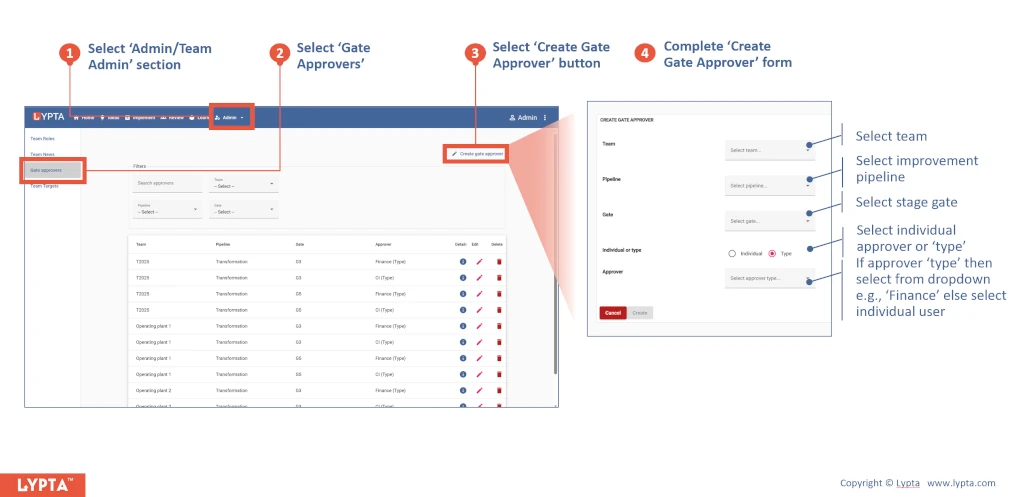
Once the gate approver has been created, you can choose to edit (or delete) the gate approver from the list by selecting the ‘edit’ (or ‘delete’) icons on the right hand side of the list.