
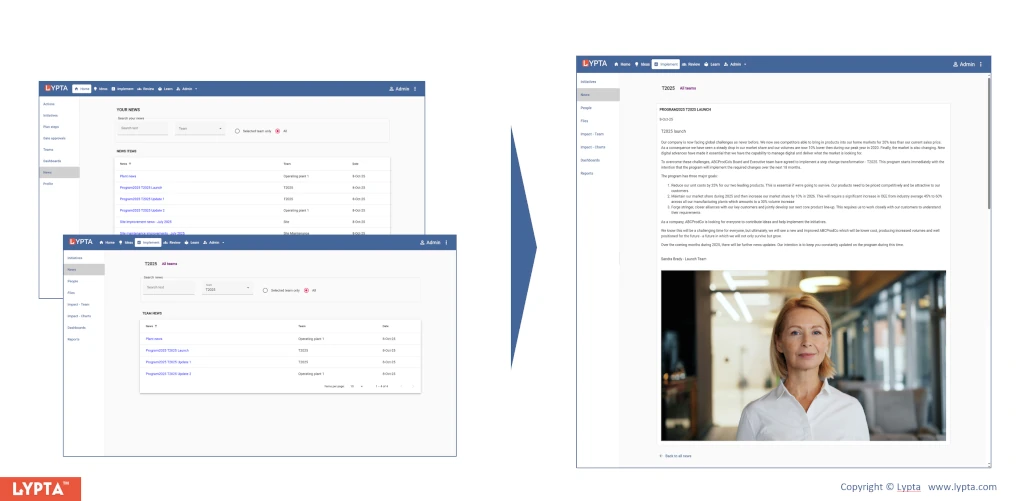
All news updates for the team is available for user access at any time. Regular news updates keeps all team members updated on improvement progress. For large transformations, this might also include initial descriptions of the purpose and vision of the transformation and the expected impact in your change org.
News items or updates can include anything related to the improvement in that team that will help keep members updated and engaged including important team milestones, success stories and individual change stories.
News is fully searchable by both content (key word search) and by team and can be accessed by users from both their ‘Home’ section and ‘Implement section’ (if they belong to a team).
Note: team leads can grant users team access at any time by giving a user the appropriate team role.
Team leads (requires ‘Lead’ authority level) can create news items at any time simply by:
- Selecting the ‘Admin/Team Admin’ section from the ‘Admin’ dropdown list in the top navigation bar
- Selecting the ‘News’ menu option on the left hand side
- Selecting the ‘Create news item’ button
- Completing the ‘Create news item’ form
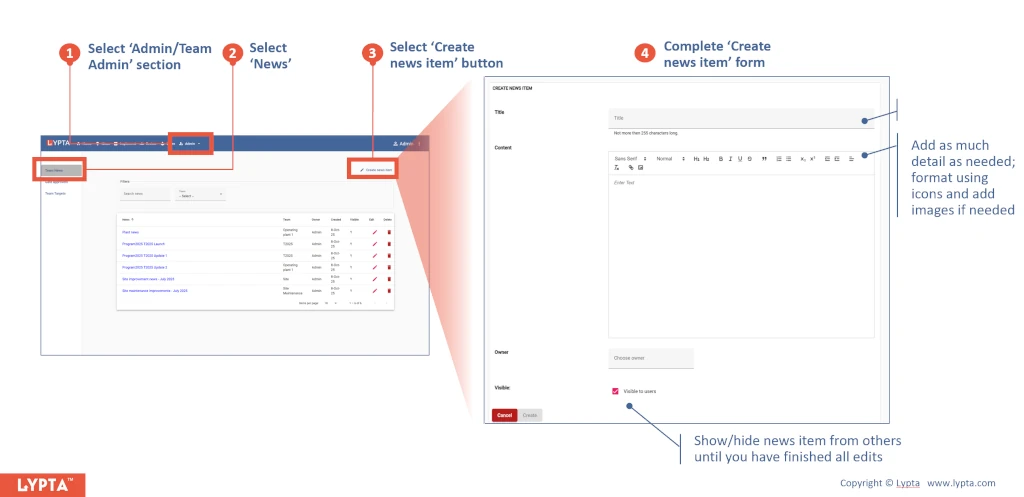
The news item can contain rich text format (bold, italics, indents etc) and images for display. Once created, the team lead can edit or delete the news item at any time by selecting the ‘edit’ or ‘delete’ icons on the right hand side of the news items. Note: The ‘edit’ and ‘delete’ icons are only seen by team leads/admin and not by team members.