Stage gate states are shown graphically in green and red depending on if a gate has been passed yet.
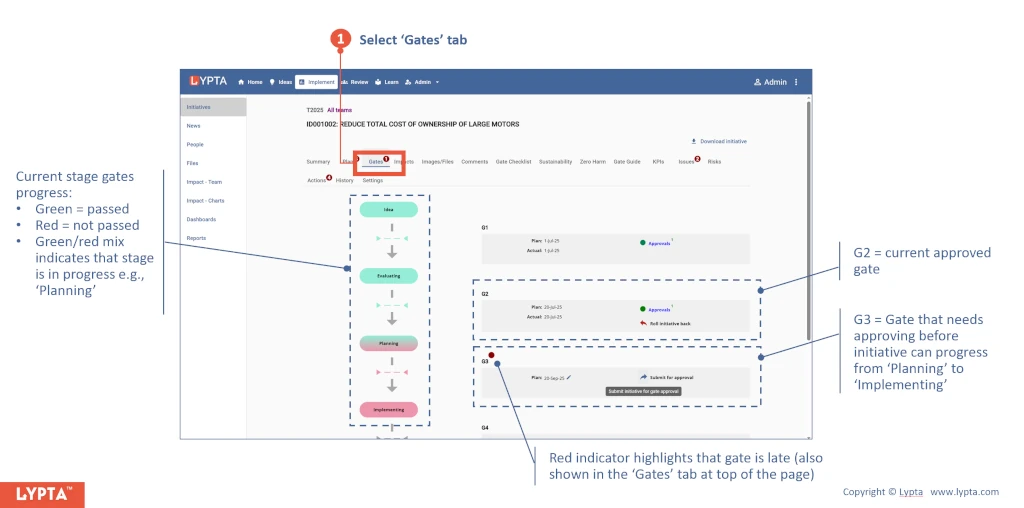
There are four possible actions at each gate:
- Submit gate for approval: The initiative is submitted for approval when all necessary actions are completed prior to the specific gate. For example, prior to the implementation gate being approved, the implementation gate should be completed. When the gate is submitted for approval, initiative gate approvers are automatically notified by email that the initiative gate needs their approval
- Retract gate submission: Reverse the gate submission, if needed, and move the initiative back to pre-submission state. Gate approvers are notified by email when this status change occurs. Retracting gate submission might be required when gate approvers suggest that further work or analysis is needed before they will approve e.g., identify implementation risks and ensure mitigating steps are in the implementation plan for the highest ranked risks
- Roll back an approved gate: Roll the current initiative gate back to the previous gate. This is only rarely needed – namely when initiative ‘plan’ values need to be changed and the initiative is already past the implementation gate when the plan is ‘frozen’
- Roll forward an approved gate: Roll the current initiative gate forwards again (after a roll back action). This restores the initiative stage to the original stage value
To submit an initiative for approval, select the ‘Submit for approval’ button. The initiative will then update itself to show new status after being submitted. Gate approvers will also be automatically sent approval requests (by email) and they will also the requests in their ‘Home’ section.
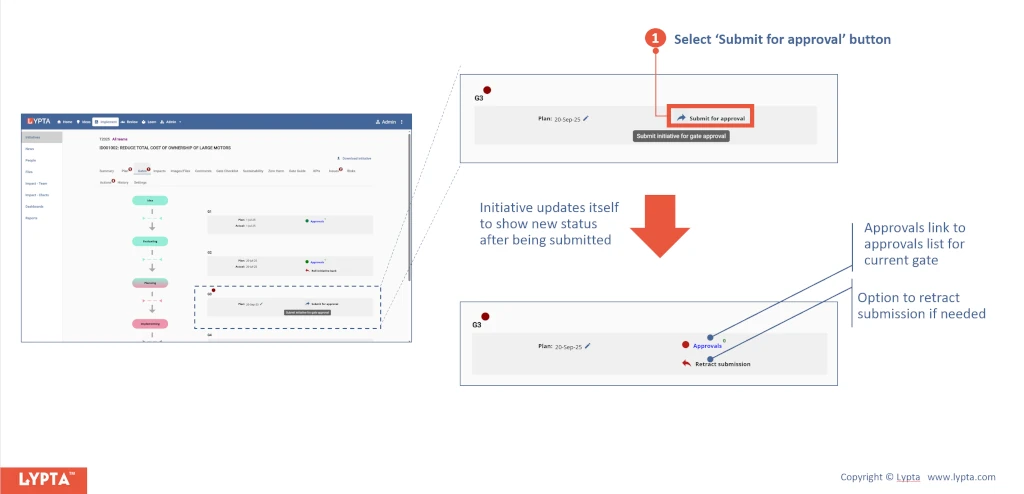
Approvals status can be seen at any time by selecting the ‘Approvals’ link which will then show:
- Who needs to approve
- Approver’s comments – if any made when approving the gate
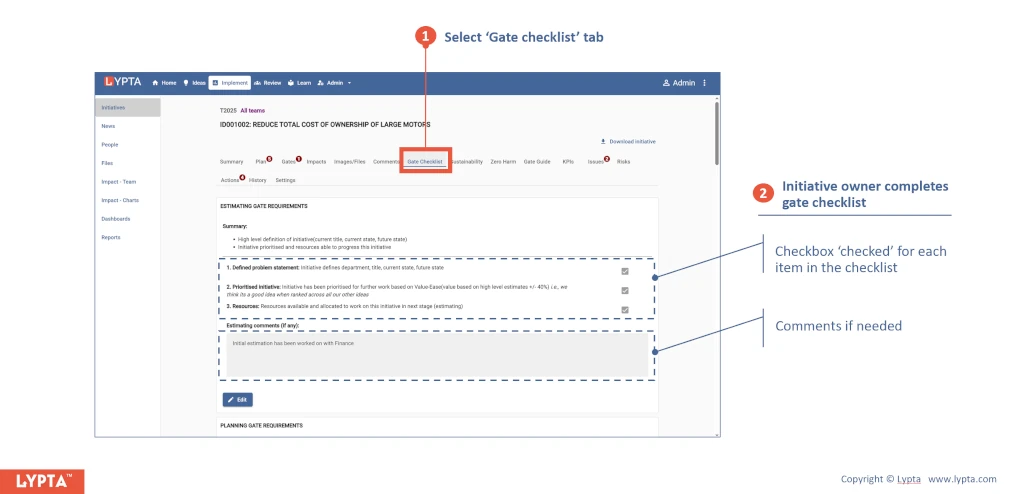
Additionally, in the Lypta Enterprise version, a gate checklist can be used to ensure the initiative owner has reviewed gate requirements for each gate before submitting for gate approval: