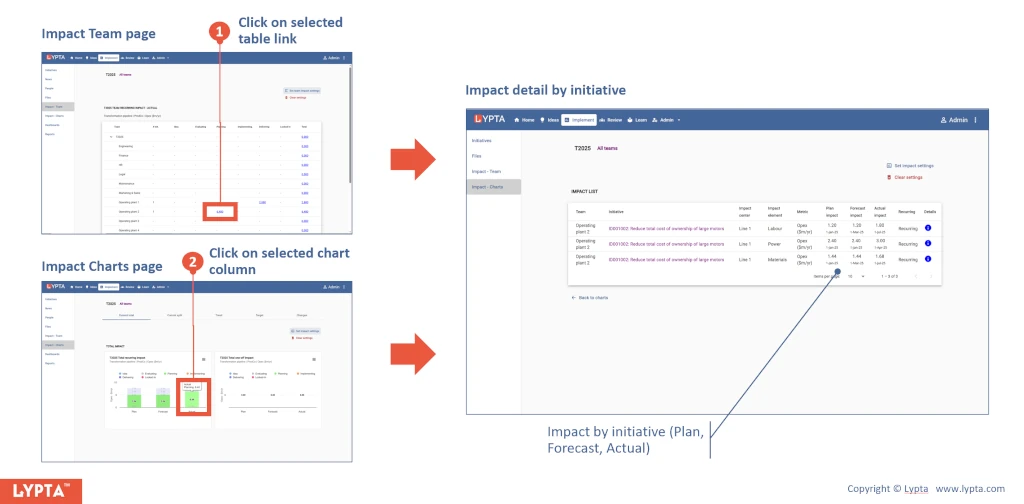
Impact charts are available for users to instantly see change progress in graphical format for a selected team.
Available charts include:
- Total recurring impact by stage gate
- Total one-off impact by stage gate
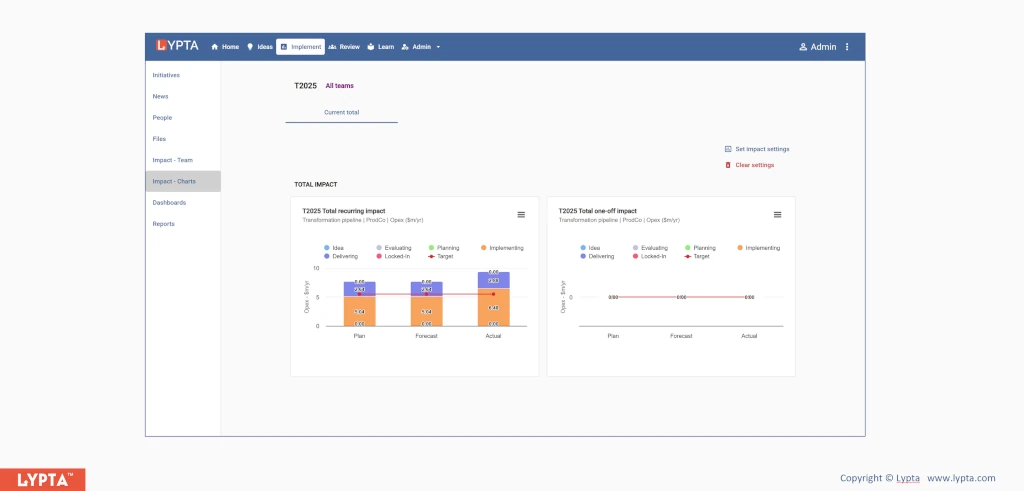
Each chart’s view is defined by ‘Impact Settings’. Select the ‘Impact Settings’ button to populate selected the chart with required values:
- Improvement pipeline: Defines the initiative’s stage gates. Select from drop down list
- Impact center: Defines the org area where impact is expected. Select from drop down list
- Impact element: Defines what the impact is (e.g., opex – power cost or availability). Select from drop down list
- Value/Y-axis to define stages above the line i.e., choose which stage are shown above the line (default is all)
- Target shown as a line on the chart:
- Impact target: Select target from drop down list. Targets are created by change org leads/admin specific to a change org
- Target stages included: Default is ‘All’ but could be restricted to only those stages which are delivering or locked in (i.e., ‘Delivering+’)
- Target date: Specified target date which can be relative (e.g., end of current month) or absolute e.g., 15 Sept ’23. Relative dates are particularly useful when setting up dashboards for use by the change org team
The chart values can be clicked by stage on to see the underlying impact detail at an initiative detail – showing which initiatives are contributing to the impact totals seen in the charts.