
KPIs
Initiative KPIs enable stakeholders to see if the initiative is:
-
Delivering the expected value on a consistent basis
-
Not adversely impacting overall performance. Risk/adverse KPIs can be added to the initiative to ensure that there are no adverse effects when the initiative is implemented e.g., quality
Tracking initiative KPIs is very effective in determining if the initiative is successful, or not, and if the initiative can be considered completed and ‘locked-in’ at which point it is assumed that the business processes can sustain the new achieved value indefinitely. Gate approvers should always look at the KPIs when determining if the initiative is ‘delivering’ or ‘locked-in’ and tracking the initiative KPIs should be a condition of approving the initiative into implementation.
Relevant KPIs can include both impact and risk KPIs if needed:
-
Impact KPI: Ideally the impact KPI should be a physical process KPI strongly linked to the initiative’s objectives e.g., shift change time if the initiative is directly focused on a reduction in shift change time. During the ‘evaluating’ stage, the initiative owner should define both the baseline and target values for the selected impact KPI so that all stakeholders have clear expectation of what success looks like.
-
Risk KPI: Risk KPIs ensure that the initiative owner is looking not just at the positive benefits of the initiative but also reviewing the potential risk outcomes during implementation.
KPIs are shown graphically to easily see if the initiative is working. Each KPI chart shows baseline, target and actual values.
Create initiative KPI
Steps to create a KPI:
- Select ‘KPIs’ tab for the initiative
- Select ‘Create KPI’ button
- Complete ‘Create KPI’ form
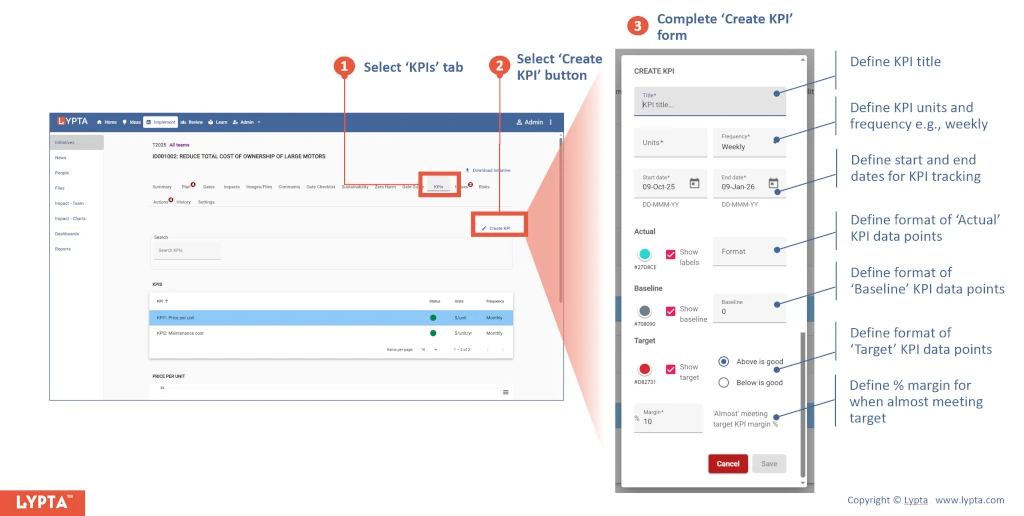
Each KPI is defined by:
- Title: Short one line description of the KPI
- Units: Data units shown in the KPI chart on the vertical axis (e.g., $/unit)
- Frequency: Daily/Weekly/Monthly/Quarterly
- Start and end dates: Start and end date of KPI chart. Note: the end date of the KPI chart can be extended if needed
- Actual column colors: Select the color of the actual values shown as columns in the chart
- Actual values format: Define the data format for the values which uses a string {minIntegerDigits}.{minFractionDigits}-{maxFractionDigits} e.g., if format is ‘1.0-0′ then value 3.6’ will be shown as ‘4’ (by rounding to the nearest number) and if format is ‘1.0-1’ then value 3.6 will be shown as ‘3.6’ and value 4.0 will be shown as ‘4’
- Baseline color: Shown as a horizontal line on the chart in the color you select
- Baseline shown: Y/N
- Baseline value: Should be based on recent historical performance e.g., 3 months history
- Target color: Shown as a line with values from the KPI chart cells (entered manually)
- Target shown: Y/N
Target and actual values are added in the cells below the selected KPI.
Lastly, a KPI chart can be downloaded in multiple formats if needed (SVG, PNG, PDF, JPEG).