Top-down targets are mainly used in the initial diagnostic phases of the improvement program, when the overall opportunity (or gap) is defined but without a clear understanding of the detail initiatives in the program or how much each initiative will contribute towards the target.
A top-down target is based on an overall expected impact value by an expected date. Unlike bottom-up targets, there is no expectation set for each initiative – only for the overall team.
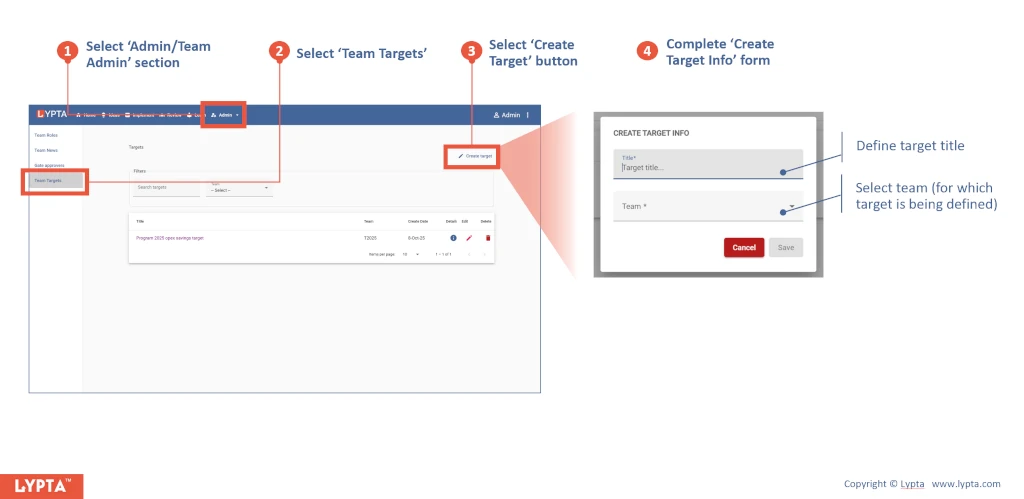
To set a top-down target, team leads (requires ‘Lead’ authority level) first create a target:
- Select ‘Admin/Team Admin’ section from the ‘Admin’ dropdown list
- Select ‘Team Targets’ from the menu option
- Select ‘Create Target’ button
- Complete ‘Create Target Info’ form
Once the target has been created, you can then select the target and see the target components:
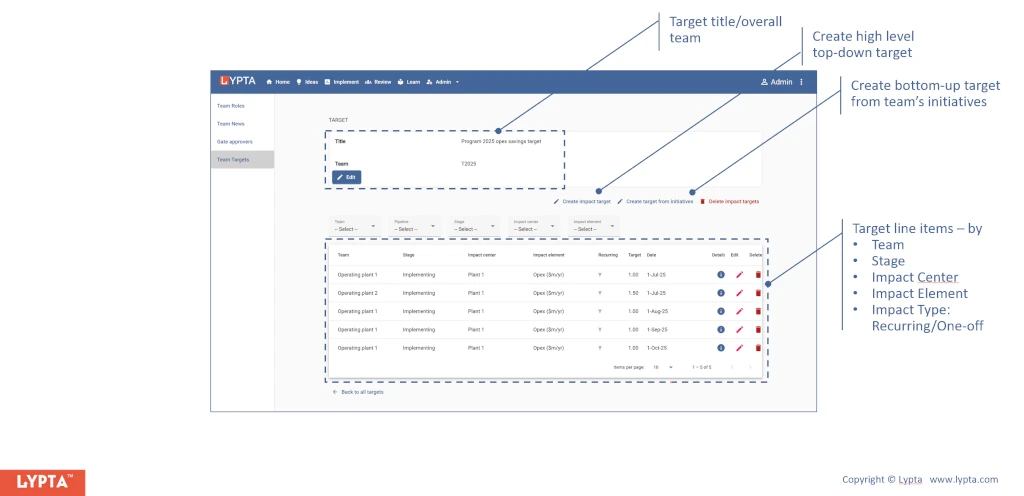
In the selected target page, you will see options to:
- Create high level top-down target
- Create bottom-up target from the team’s initiatives
To create a top-down target,
- Select the ‘Create impact target’ button and
- Complete the ‘Create impact target’ form
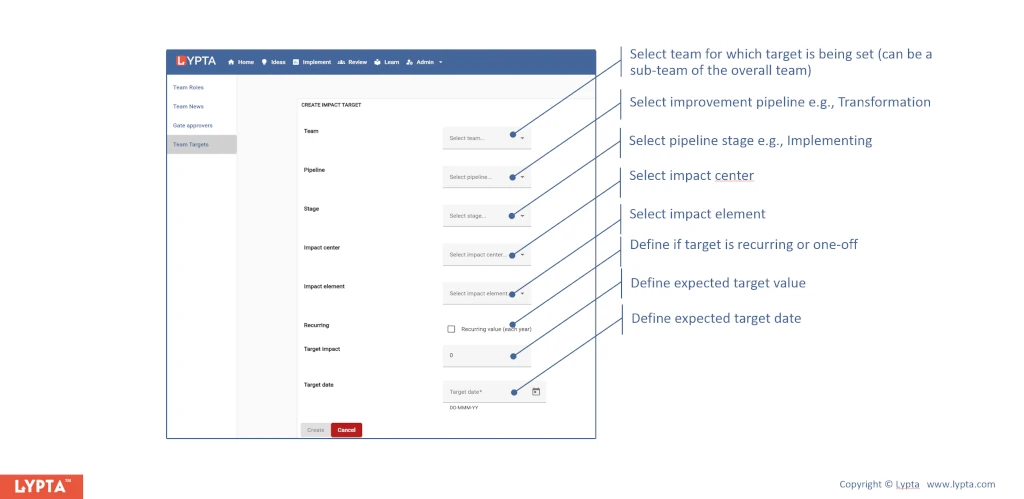
Top-down targets for a team are set by explicitly defining:
- Team: Selected team that target is being set for
- Improvement pipeline: Pipeline used by the target stage e.g., Transformation
- Stage: Selected from drop down list once the workflow has been selected
- Impact center: Selected from drop down list. Org for which target is being set for
- Impact element: Selected from drop down. Impact element defines the metric the target is being set for e.g., opex – power cost
- Impact type: Recurring vs one-off
- Target impact value: The expected target impact being set
- Target date: defined date that the time bound target is set for
Multiple top down targets can be set for a team for the same date e.g., a finance target and a physical, operation target such reduced downtime.
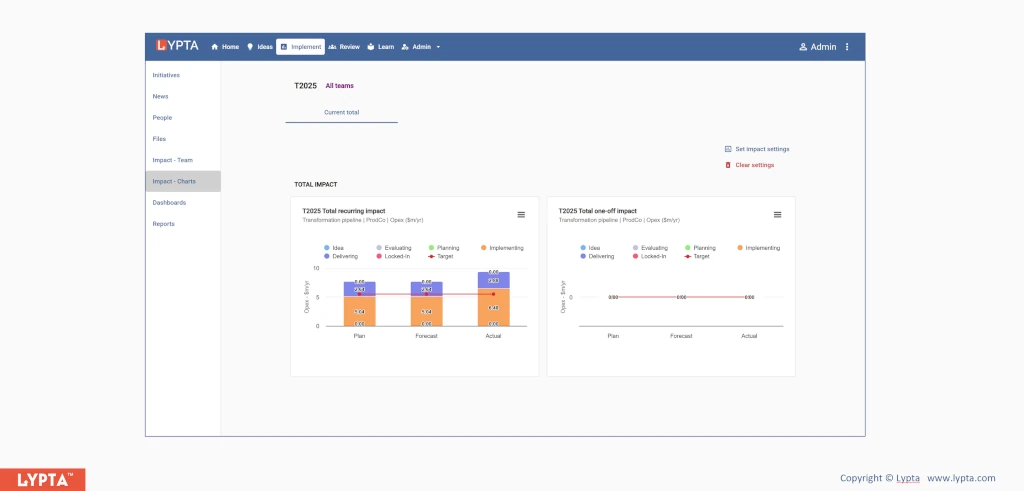
Once the target has been defined, you can use the target in all impact charts to instantly show progress against target: