
SuperAdmin can define app colors used throughout the Lypta app (traffic lights, gantt, stage gates, KPIs and impact target colors).
To set the app colors:
- Select ‘Admin/General’ section from the ‘Admin’ dropdown list in the top navigation bar
- Select ‘App Settings’ menu option
- Select ‘App Colors’ tab
You will then see the full list of app colors used (excluding branding) – these can be changed by selecting the ‘Edit’ button and then the relevant field for the required app color.
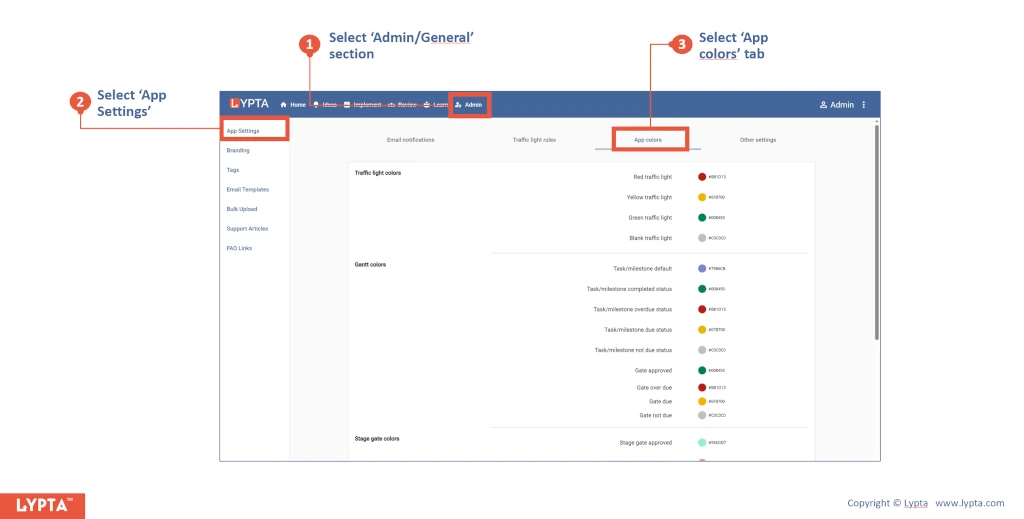
Defined app colors:
-
Traffic light colors:
-
Red traffic light
-
Yellow traffic light
-
Green traffic light
-
Blank traffic light
-
-
Gantt colors:
-
Gate approved
-
Gate not approved
-
Milestone due completed
-
Milestone due not completed
-
Milestone not due completed
-
Milestone not due not completed
-
Work step completed
-
Work step not completed
-
-
Stage gate colors:
-
Stage gate approved
-
Stage gate not approved
-
Bar graphic inactive
-
Bar graphic not passed
-
Bar graphic passed
-
Bar icon inactive
-
Bar icon not passed
-
Bar icon passed
-
-
KPI colors (default – user can select own):
-
Baseline
-
Target
-
Actual
-
-
Impact chart colors:
-
Target
-