
SuperAdmin can define traffic light rules throughout the Lypta app for actions, work steps and KPIs.
To set the traffic light rules:
- Select ‘Admin/General’ section from the ‘Admin’ dropdown list in the top navigation bar
- Select ‘App Settings’ menu option
- Select ‘Traffic Light Rules’ tab
You will then see the full list of available rules – these can be changed by selecting the ‘Edit’ button and then the relevant field for the required traffic light rule.
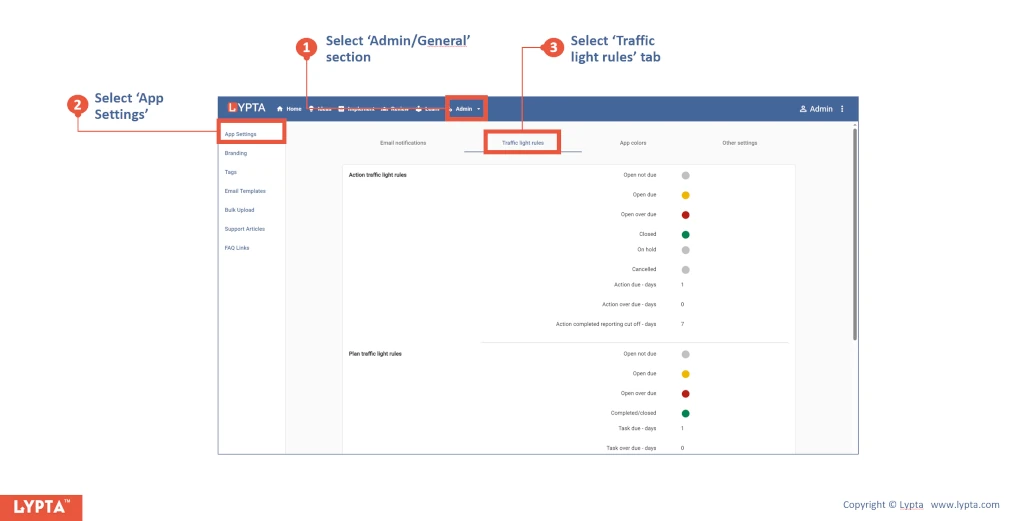
Action traffic light rules:
- Open not due = Red/Yellow/Green/Other
- Open due = Red/Yellow/Green/Other
- Open over due = Red/Yellow/Green/Other
- Closed = Red/Yellow/Green/Other
- On hold = Red/Yellow/Green/Other
- Cancelled = Red/Yellow/Green/Other
- Action due – days = 1
- Action over due – days = 0
- Action completed reporting cut off – days = 7
Work step traffic light rules:
- Open not due = Red/Yellow/Green/Other
- Open due = Red/Yellow/Green/Other
- Open over due = Red/Yellow/Green/Other
- Closed = Red/Yellow/Green/Other
- Work step due – days = 1
- Work step over due – days = 0
- Gate due – days = 1
- Gate over due – days = 0
KPI traffic light rules:
- Meeting target KPI = Red/Yellow/Green/Other
- Almost meeting target KPI = Red/Yellow/Green/Other
- Not meeting target KPI = Red/Yellow/Green/Other
- Undefined KPI status = Red/Yellow/Green/Other
- Almost meeting target KPI margin (%) = 10%