
The initiative status dashboard gives an instant status view of every initiative belonging to a team. Each initiative card shows:
- Health: Health status as reported by the initiative owner
- Actions: Actions status based on plan due date and if date has slipped or not
- Issues: Issues status showing number of ‘major’ issues based on issue severity
- Risks: Risks status showing number of risks by risk rating (e.g., critical, high, medium, low)
- Plan: Work plan status based on number of plan steps that are late or slipped
- Gates: Gates status based on plan due date
- KPIs: KPI status based on if meeting target, almost meeting target or significantly below target
- Impacts: Impact status based on if meeting target value and by plan date
Options exist to determine which status indicators are shown in the dashboard:
- Select ‘Initiatives’ menu option for the team (in the ‘Implement’ section)
- Select ‘Initiatives status’ tab
- Select ‘Status format’ button
- Complete ‘Set cards format’ form (card content can then be selected using the checkboxes)
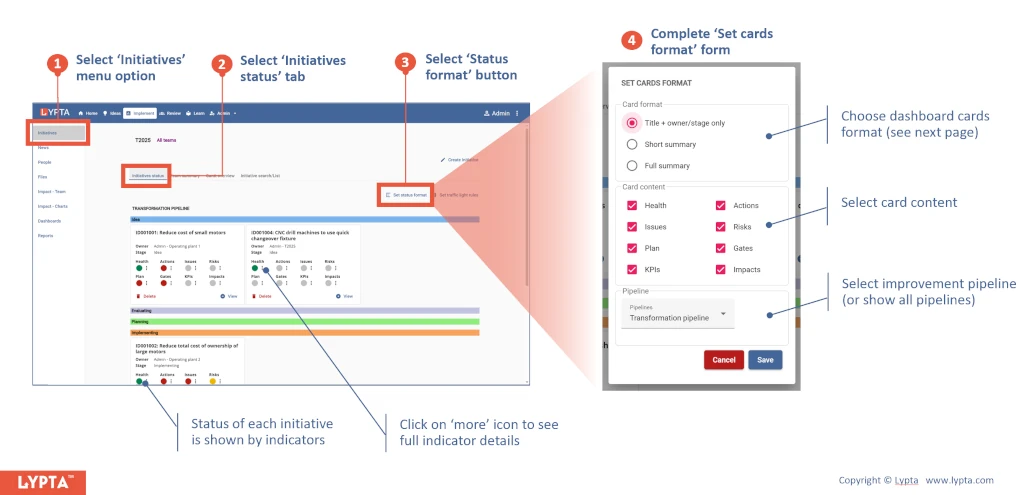
Clicking on each indicator will show the underlying detail for that indicator e.g., the initiative actions and status & due dates for each.
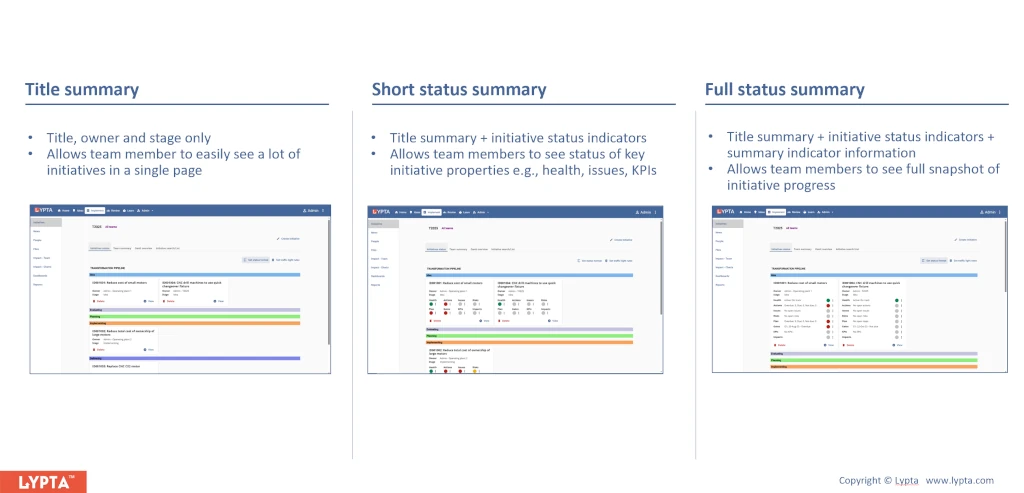
The format (as well as the content) of each card can be changed as well – using the same form. Three format options exist:
- Title summary: Shows title, owner and stage only. Allows team member to easily see all initiatives in a consolidated format
- Short status summary: Shows title summary and initiative status indicators. Allows team members to instantly see the status of key initiative indicators e.g., health, issues etc
- Full status summary: Shows title summary + initiative status indicators + detailed indicator information. Allows team members to see full snapshot of initiative progress
The status of each initiative can also be summarised in a traffic light color (red, yellow, green) by setting traffic light rules:
- Select ‘Initiatives Status’ tab for the team (in the ‘Implement’ section’)
- Select ‘Set traffic light rules’ button
- Complete ‘traffic light rules’ form
The initiative traffic light color is shown as a thin strip on the left of the initiative card.
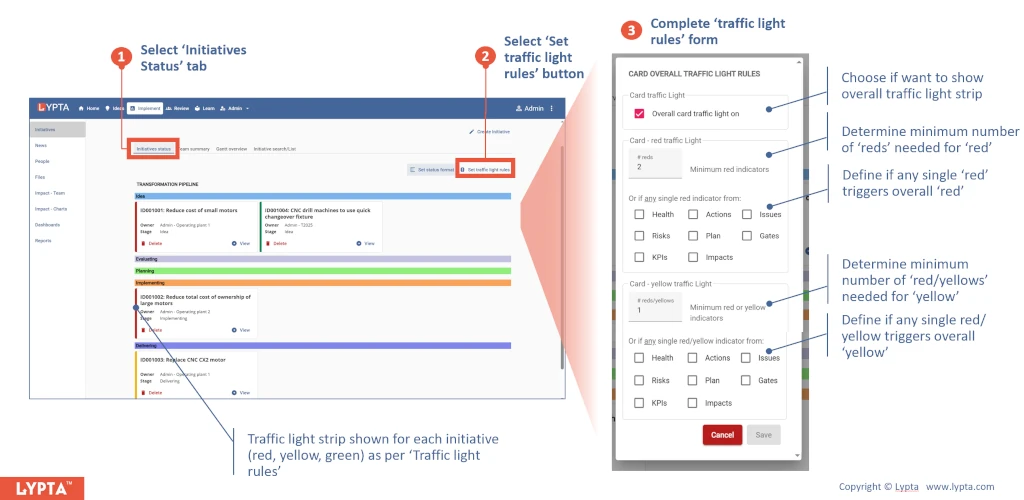
The traffic light rules can be controlled by the number of reds and yellows for each of the summary indicators.