
Lypta is an ancient Norse word meaning ‘Lift’ which encompasses our mission of ‘lifting’ your organization’s performance through Continuous Improvement or major Transformation programs:

Lypta software is designed to quickly bring you an ‘always-on’ capability to manage improvement in your organization and is an improvement program management system designed from the bottom-up to:
- Provide full functionality to manage all your organization’s ideas and initiatives and support all your improvement processes (idea management, initiative stage gating, implementation planning, target setting, running progress reviews and more…).
- Be fast, easy to use and work everywhere whilst also being easy to configure to your needs.
- Provide a direct connection for improvement programs to everyone in your workforce.
This overview will first run through the key concepts used in Lypta, shown below, and then run through the key areas/pages in the Lypta app.
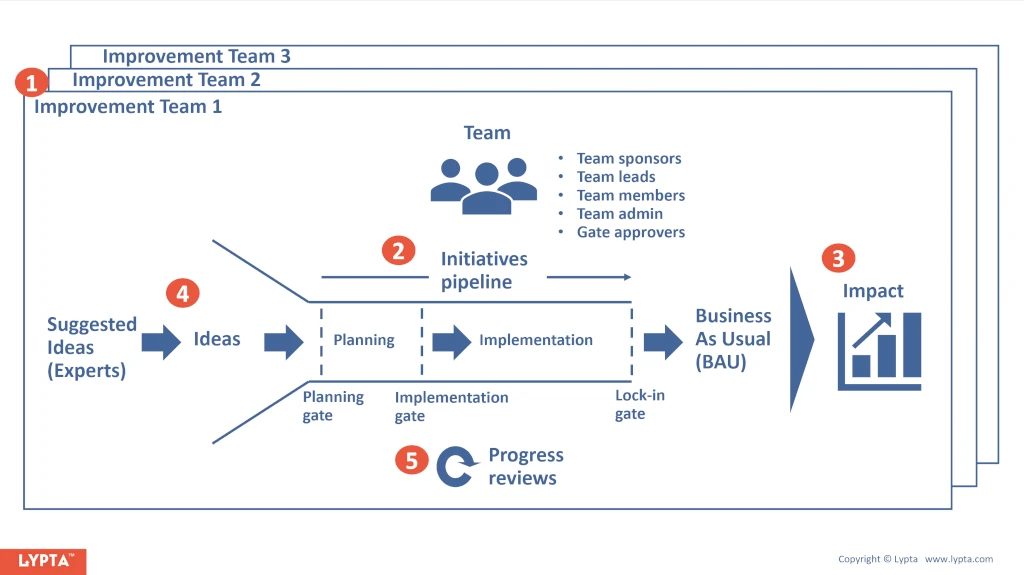
1. Key concept – Teams
The improvement ‘team’ is a key concept central to the Lypta app.
- Each team has initiatives – for which they are accountable for delivering – which collectively are expected to meet the team’s overall program objectives.
- Teams can be organised to support Continuous Improvement (reflecting the organization’s underlying org structure) or teams can also be set-up to support Transformation programs (e.g., with support Program Management Office) – as shown below.
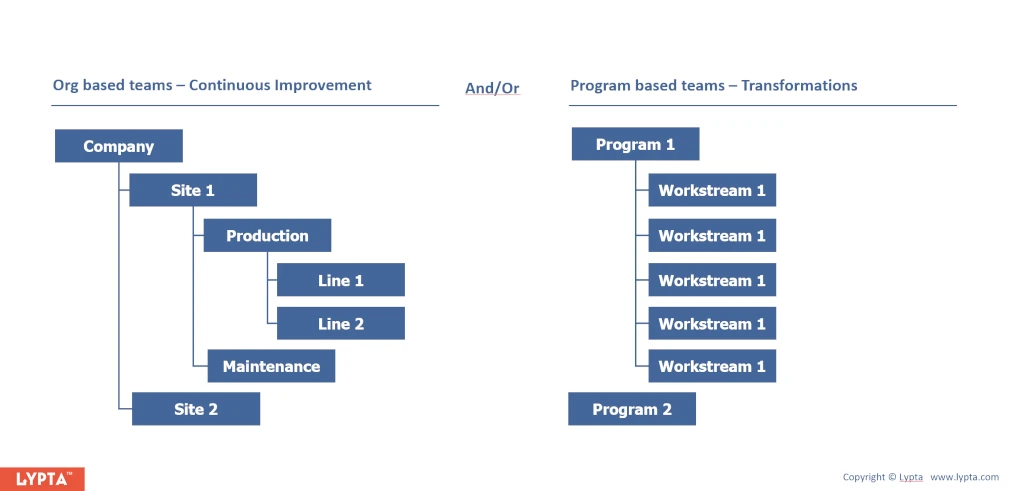
Each team has team members. Until, the user is made a member of the team with a defined role, they are unable to see any of the team’s initiatives. Key team roles include:
- Team sponsorswho are usually the recognised business owners or line leaders for the org area.
- Team leads can also exist in each team to support team sponsors, particularly for larger transformation programs.
- Team members who are typically initiative owners reporting to the team sponsor (or team lead) and have access to the team pages and, of course, full edit access to their own initiatives.
- Team admin who can also support the improvement program and have access to team pages and team admin pages.
- Gate approvers – key stakeholders – who approve the initiative gates for that team e.g., Team sponsor, Finance.
2. Key concept – Initiatives
Improvement initiatives are the heart of Lypta. Each initiative, or implementation project, is a set of planned steps to achieve something of value to the organization or team i.e., a specific expected impact or outcome. Each initiative has an initiative owner responsible for delivering the expected impact. Initiatives are grouped under teams (programs).
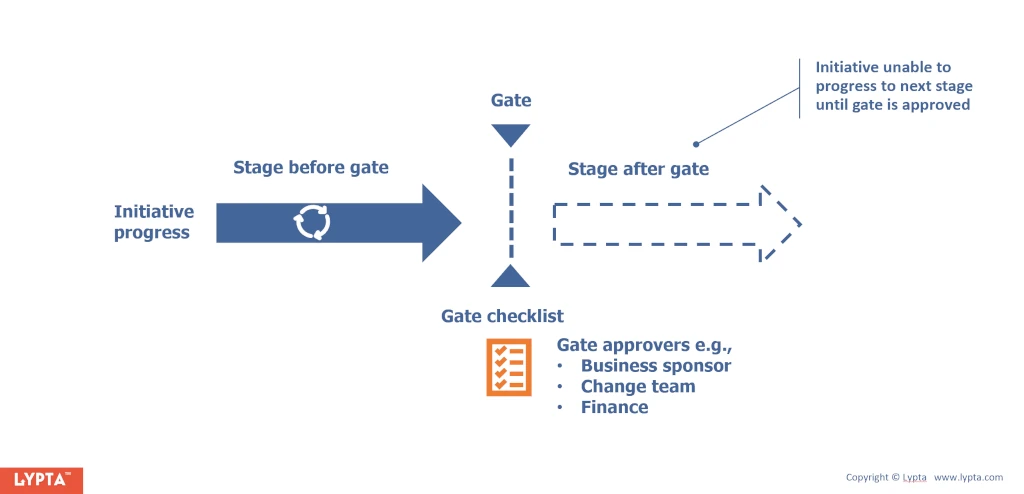
Each initiative goes through a ‘pipeline’ of stage gates from initial concept or idea through to completion. As shown below, each stage gate requires approval from defined gate approvers e.g., Business Sponsor, Improvement Team, Finance. Using stage gating ensures that an initiative does not progress until all the key stakeholders have agreed and that the initiative is set-up for success e.g., has defined measures of success, has an implementation plan, has planned resources.
3. Key concept – Impacts
In Lypta, initiative and overall improvement team results are defined by ‘impacts’ which are output, lagging metrics, measuring the initiative and team’s impact on the business. Collectively, the impact across all initiatives for an improvement team should deliver the team’s overall target improvement – opex savings for example.
As shown below, impacts are defined by:
- Impact centers – ’Where’ the impact is expected – for example a division or a site or a department. And,
- Impact elements – ’What’ impact is expected. Impacts can be non-dollar based – for example, uptime, or product quality. Each impact element also has an ‘impact metric’ which defines the units of the impact element – dollars, for example, or availability percentage.
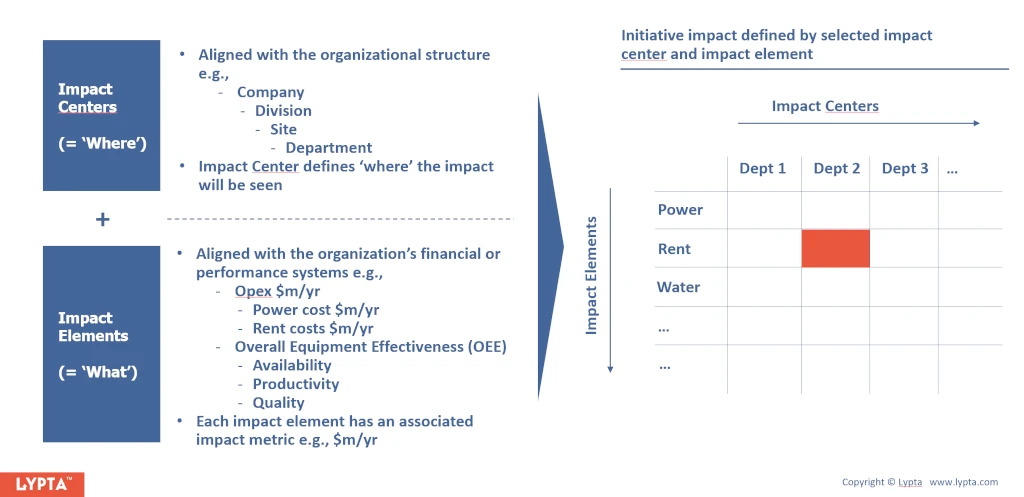
In the Power and Enterprise products you can define as many impact centers and impact elements as you need – in addition to just operating expenditure savings. Whilst in the Foundation and Core products, opex savings is used as the default impact.
Initiatives can have as many impact values as needed – for example opex savings and increased availability.
4. Key concept – Ideas
Improvement ideas are a crucial first step in any improvement program.
Whilst some simple ideas might be a ‘just do it’ – most ideas will be a pre-cursor to an improvement initiative – and a Lypta idea can be easily converted to a team initiative with a single click.
Lypta’s idea management allows your organization to build up a bank of potential ideas from your employees that can be easily reviewed and prioritized before implementing.
Ideas can be sourced from your employees at any time including when they are out in the field using their mobile phone.
Using Lypta – you can also source ‘suggested ideas’ from expert resources – including expert LLM’s such as Google AI, Open AI or Perplexity and also Lypta’s own expert AI for selected industry sectors.
5. Key concept – Progress Reviews
Lastly, to ensure that your improvement programs progress with pace and rigour, you will need to run regular progress reviews – usually weekly. The purpose of these reviews is to review team progress, resolve issues/roadblocks and provide direction. Participants should include team leads, sponsors and key initiative owners. These progress reviews can be done face-to-face (with paper) or completely online.
Lypta app – structure
To help you deliver impact as rapidly as possible, Lypta is split into 6 overall areas – shown in the navigation bar at the top of the page – including home, ideas, implement, review, learn and, lastly, admin if you have admin privileges:

or at the bottom of the page when viewing the app on your mobile phone:

We’ll run through each of these areas from left to right in more detail.
Home area
Keep track of all your improvement commitments
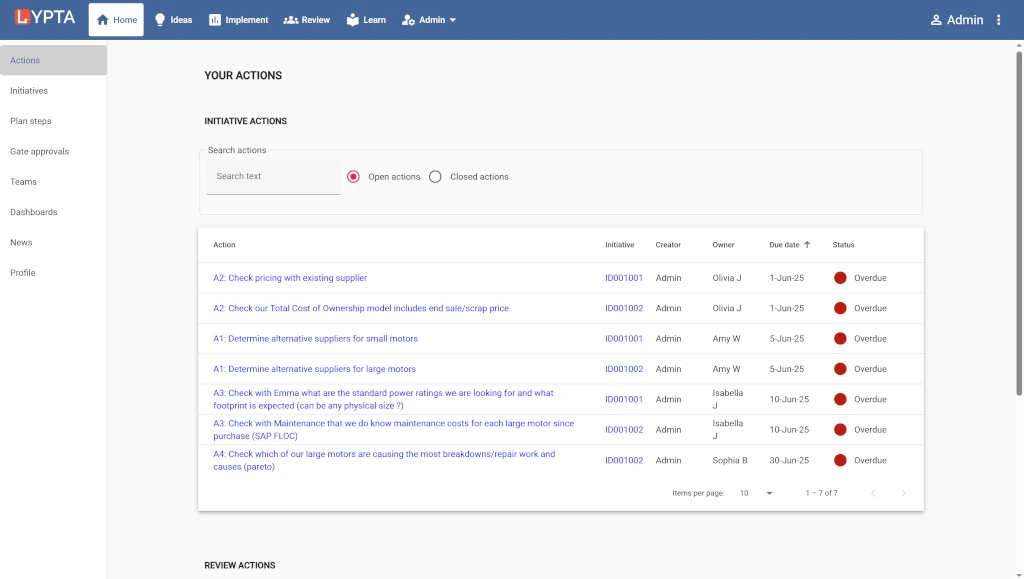
Each user has their own ‘Home’ area, allowing them to instantly see information that is only relevant to them.
Key pages (side menu):
- Actions: All actions that the user either created or owns (i.e., expected to complete the action).
- Initiatives: All initiatives that the user owns (as initiative owner)
- Plan steps: All initiative implementation steps that the user owns
- Gate approvals: All initiative gate approvals requested from the user
- Teams: All teams for which the user has a role e.g., team member, leader, sponsor
- Dashboards: All dashboards that the user has set-up. These dashboards can be exported to teams (either in the Implement or Reviews area)
- News: All team news that has been listed for the teams that the user is a member of
- Profile: The user’s name details (these can be changed at any time – although note that the user’s email address cannot be changed as it is used as the unique identifier for each user)
Ideas area
Generate, share and comment on potential improvement ideas
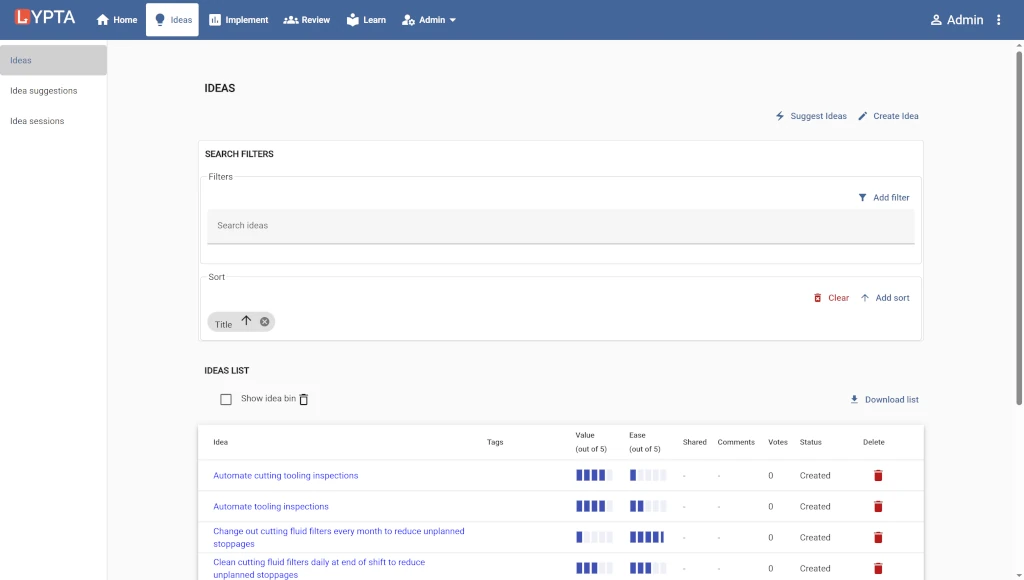
Each user also has their own ‘Ideas’ area consisting of both their own ideas and also ideas shared by others. Until users have shared their ideas for feedback they are not seen by other users. Users can convert ideas into initiatives whenever they want to implement them (or can simply action an idea immediately – if they want to implement the idea without any further governance).
Key pages (side menu):
- Ideas: All ideas that the user has access to. Ideas can be easily searched by key words. Once selected, each idea has several tabs including a summary of the idea, comments and images/files. This allows users to easily add information on an on-going basis until ready to convert the idea into an initiative.
- Suggested ideas: Expert ideas sourced from the web can be requested for any topic. Ideas are sourced from Google AI, Open AI and Perplexity for any industry sector. Additionally, expert ideas are also sourced from Lypta’s own AI for selected industries. Suggested ideas can be instantly converted into user ideas and shared with others, whenever the user thinks the suggested idea is worth progressing.
- Idea sessions: Ideas can also be prioritised in idea sessions where users can individually or collectively agree the value and ease of each idea – typically on a scale of 1 (low) to 5 (high). These are shown graphically in a value-ease chart allowing users to instantly see high priority ideas worth progressing.
Implement area
Implement your team’s initiatives and track/report progress
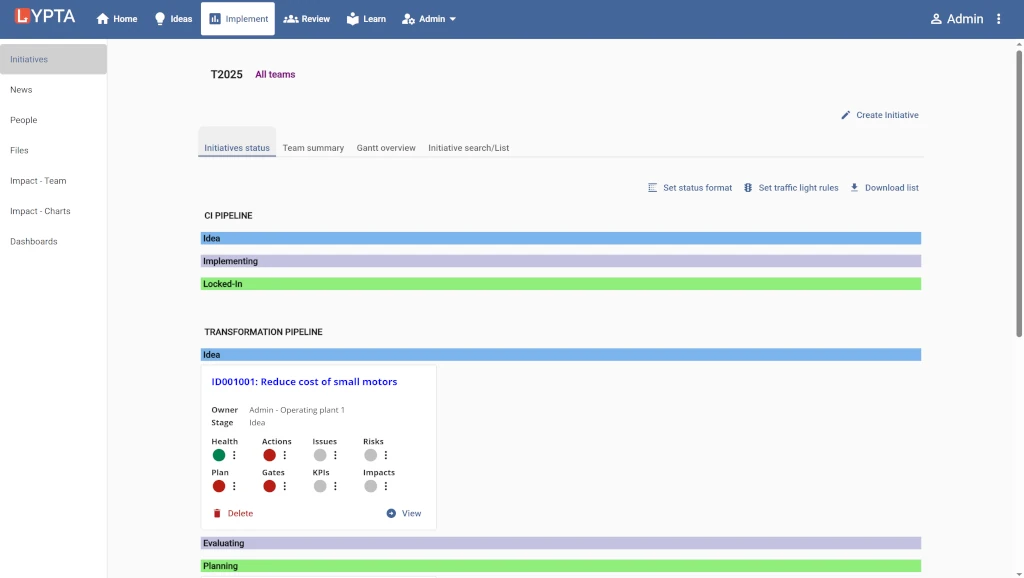
The Implement area is the heart of the Lypta platform and contains all the initiatives for each team (selected when first selecting ‘Implement’ in the top nav bar).
Key pages (side menu) for each team:
- Initiatives: Contains four tabs showing:
- Initiatives status: Status of each initiative including overall initiative health, actions, issues, risks, gates, KPIs, implementation plan and impacts.
- Team summary: Detailed dashboard showing team’s overall progress in summary cards and charts.
- Gantt overview: Overall timeline for the team’s initiatives.
- Initiative search/list: Searchable list of the initiatives (using keywords or initiative attributes).
- Each initiative shown in these tabs can be selected to show all the initiative information including an initiative summary, initiative gates, implementation plan, KPIs, comments, images/files and issues/risks (optional). This information allows the initiative owner to manage their initiative from initial concept through to completion.
- News: Lists all the team’s news; the team news is added by team leads in the Admin area.
- People: Lists the roles of all team members e.g., business sponsor, initiative owners, gate approvers, team leads.
- Files: All files associated with the team (if any).
- Impact – Team: Table of impact showing the impact achieved so far by initiative stage and team.
- Impact – Charts: Team impact shown visually (by initiative stage and team)
- Dashboards: Team dashboards defined by team leads showing overall team progress.
- Reports: Excel reports that can be downloaded showing overall team and initiative progress.
Review area
Manage improvement progress reviews online
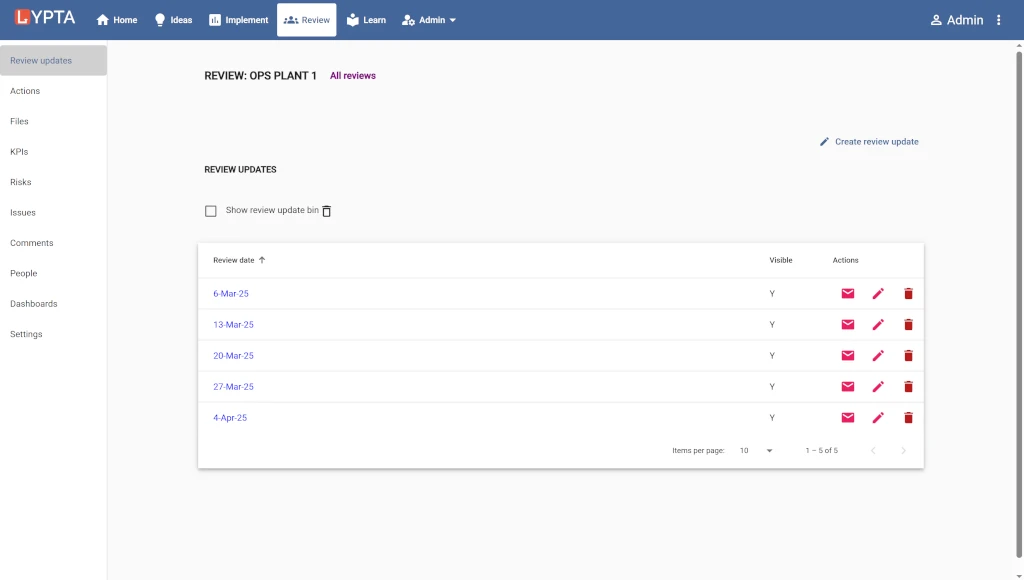
The Review area is used to support your regular team progress reviews (either offline, in which case you can print the required pages or completely online using Lypta).
Key pages (side menu) for each review:
- Review updates: Provide the key progress information for each review (highlights, lowlights, issues, priorities, escalations)
- Actions: Keep track of the team’s actions
- Files: Share progress reports/documents
- KPIs: Track the team’s overall progress KPIs
- Risks: Review implementation risks
- Issues: Track and manage on-going improvement team issues
- Comments: Enable the team to provide commentary between reviews
- People: Define review participants
- Dashboards: Share team dashboards so everyone has common view and understanding of progress
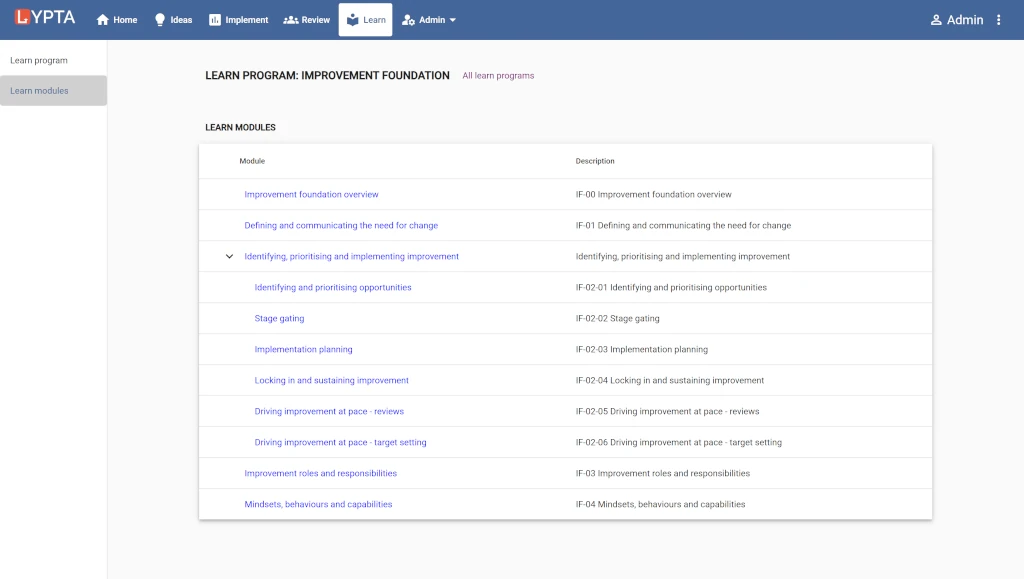
Learn area
Enable all your teams to easily see and learn your organization’s improvement practices
Optional learning programs that your organization might use to provide further information on Continuous Improvement or Transformation – for example more explanation on the stage gating practices in your organization and initiative requirements for each gate.
Key pages (side menu) for each learn program:
- Learn program overview: An overall description of the learning framework e.g., Continuous Improvement or Transformation.
- Learn modules: Core learning documents for each module encompassing all your improvement practices. In the Lypta ‘Enterprise’ version, modules can also include online ‘Learning Management System’ courses.
Admin area
Manage all your admin requirements
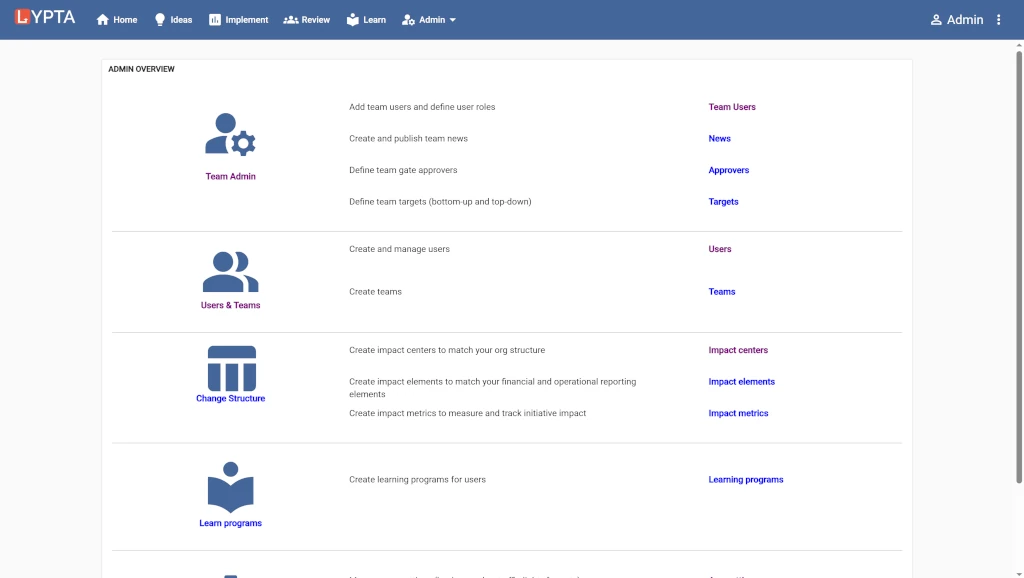
The Admin area is only visible to the Super Admin and team leads who have access to the Team Admin area, enabling them to manage their specific team requirements.
Key pages (side menu):
- Team Admin: Team leads and Super Admin – Add team users and define user roles, create and publish team news, define team gate approvers and set team targets (bottom-up and top-down)
- Users & Teams: Super Admin only (on-going) – Create and manage users (including disabling if they have left the organization). Create teams to match your organization’s improvement programs – either on-going Continuous Improvement or major Transformations.
- Change Structure: Super Admin only (at initial set-up) – Create improvement pipelines and associated stage gates to match your in-house workflows. Create impact centers to match your org structure and create impact elements to match your financial and operational reporting elements. Create impact metrics to measure and track initiative impacts (e.g., Opex $, Line availability, Revenue $)
- Dynamic Formats: Super Admin only (at initial set-up) – Create template pages for ideas, initiatives and reviews (with customized sections, fields & content). Define mappings between dynamic fields for ideas and initiatives
- Learn: Super Admin only (at initial set-up) – Organize and manage all your improvement documents/learning programs for your users in one area
- General: Super Admin only (at initial set-up) – Manage app settings (business rules, traffic lights, formats), app branding (logo and colors), initiative tags. Define email templates for email notifications (e.g., approvals). Manage bulk upload for program content (e.g., ideas, initiatives, users)
Summary
Now you’ve seen a full overview of the key Lypta concepts including:
- Teams
- Initiatives
- Impacts
- Ideas
- Reviews
and you’ve also seen the key areas/pages in Lypta to support your improvement programs:
- Home – Keep track of all your improvement commitments
- Ideas – Generate, share and comment on potential improvement ideas
- Implement – Implement your team’s initiatives and track/report progress
- Review – Manage improvement progress reviews online
- Learn – Enable all your teams to easily see and learn your organization’s improvement practices
- Admin – Manage all your admin requirements
View our other videos and articles in the knowledge base to understand how to use each area in detail and for further help on your improvement journey!