Create dashboard
Dashboards can be set-up for any team by team leads (requires ‘Lead’ authority level). The dashboard is created from your ‘home’ section and then exported to the selected team so that all team members can view the dashboard.
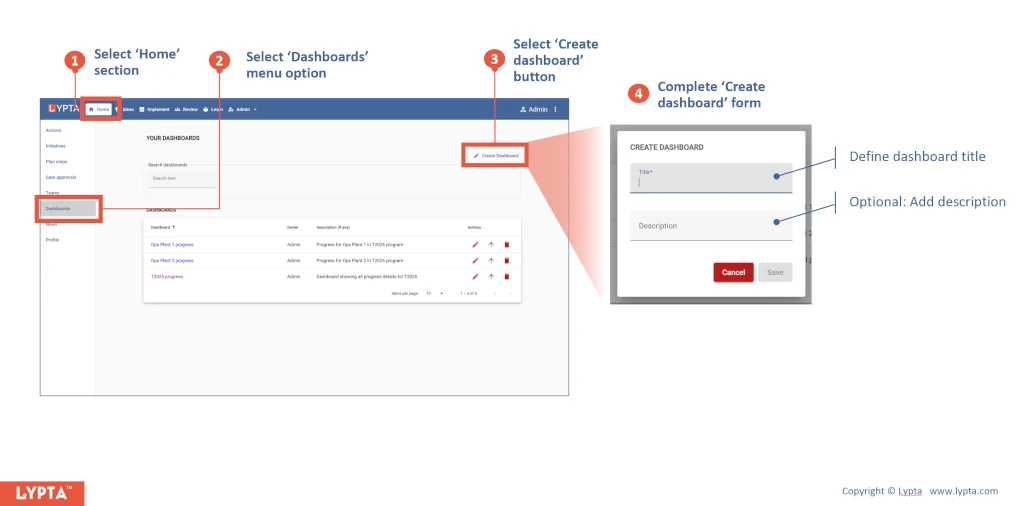
Steps to create a dashboard:
- Select ‘Home’ section
- Select ‘Dashboards’ menu option
- Select ‘Create Dashboard’ button
- Complete ‘Create dashboard’ form
A dashboard can have multiple charts and initiative lists as needed to show all the relevant team improvement progress on a single page. These charts and lists are each shown on ‘cards’.
Create dashboard card
To create a dashboard card once you have created a dashboard:
- Select ‘Create card’ button
- Complete ‘Create dashboard card’ form
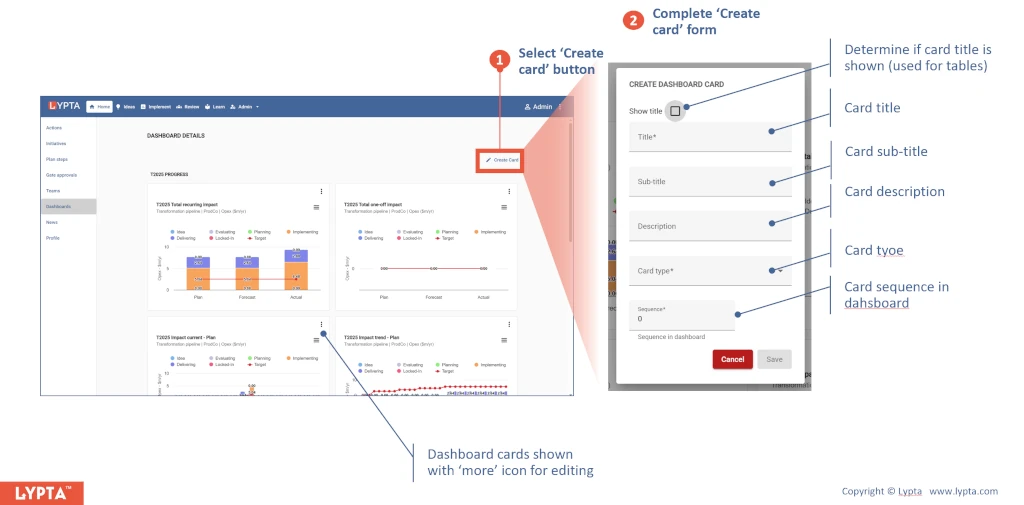
Dashboad ‘Card type’ is a drop down with many options including team status of:
- Impact
- Initiative health
- Actions – status + activity
- Risks – status + activity
- Issues – status + activity
- KPIs
- Workplan steps – status + activity
- Gates
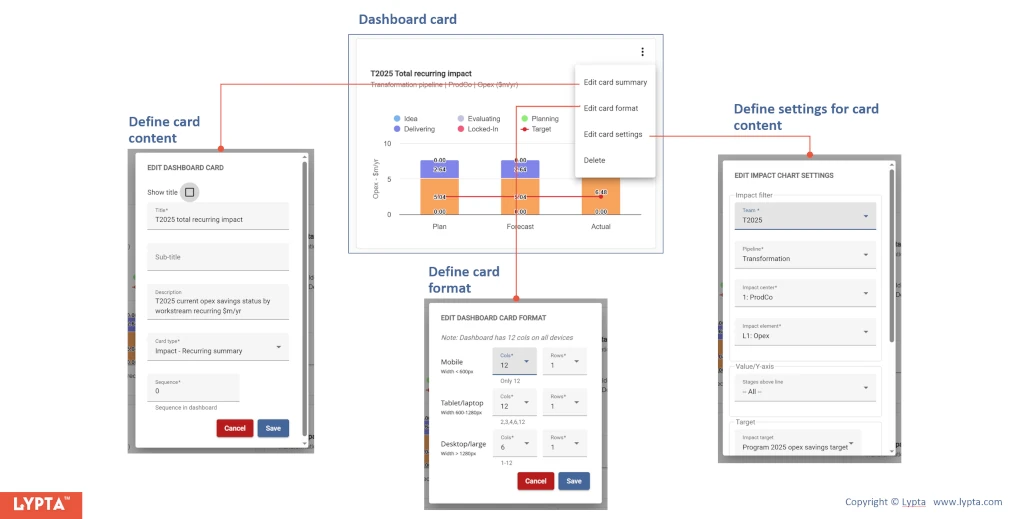
Edit dashboard card to define format and content
Once the card has been created, you can edit the card properties:
- Define card content (same form as used to create the card)
- Define card format and the size/appearance in the dashboard. The dashboard is 12 columns wide for each each row on all devices. On larger devices, you might want to show the card using only 4, 6 or 8 columns allowing another card to fit on the same row (rather than use the full screen width)
- Define card content settings. This includes the filters and parameters for the data shown in the card